![Rivet Lobo.png]](https://support.rivet.work/hs-fs/hubfs/Rivet%20Lobo.png?height=40&name=Rivet%20Lobo.png)
💡 Note: This article contains interactive tutorials. Click the targets to advance to the next step.
🏆 Tip: Permissions Required - View Roster Board and Report
Contents
Navigation
Sort and Filter Bar
Card Content
Job Cards
Math Breakdown
Start/End Dates
Status Buckets
Date Log
Related Material
Saved Views
Sort and Filter Bar
Tags
Navigation
Navigate to the Roster Board using the navigation menu on the left side.
Sort and Filter Bar
Use the Sort and Filter Bar to segment your data
When you find a data set that works, consider saving that view for easy access
Card Content
The Card Content menu allows you to customize the Job Cards on the Roster Board
These combinations of information are also savable as custom views
Save as many custom views as needed
Job Cards
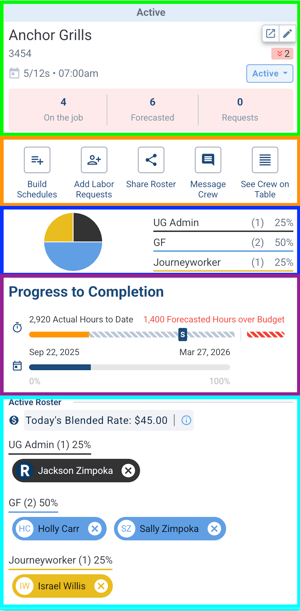
 - Default Job Schedule, Job Status, Comments, Labor Scheduled/Requested today.
 - Quick Action Buttons
 - Roster Breakdown
 - Job Status Bars: Hours used, Labor Budget spend, Start/End date
 - Active Roster, Blended Rate
↑ Back to top
Math Breakdown
- Clicking the Progress Bar on a Job Card on the Roster Board will display the math that goes into creating that display.
- The key to the icons displayed on the Job Card are located in this popover.
Start/End Dates
- Clicking on the Duration Status Bar on a Job Card on the Roster Board will display additional data in relation to this jobs progress through time.
- The start/end dates will be displayed, the number of weeks remaining on the project, and the percentage of weeks completed.
Status Buckets
- The Status Buckets are on the right side of the Roster Board.
- The Roster Board is displaying a snapshot of one day at a time.
- These status buckets aggregate information on key metrics for a single day in time.
Date Log
- The Date Log is collapsed by default.
- Open it by clicking the arrow on the right side
- Find data in accordance with Display Group Tags or stats for the company as a whole