![Rivet Lobo.png]](https://support.rivet.work/hs-fs/hubfs/Rivet%20Lobo.png?height=40&name=Rivet%20Lobo.png)
1. Set up user accounts in Duo
Add each user that will be logging in to RIVET to Duo. Their email address in Duo must match the email on their RIVET account — if they haven't been invited to RIVET yet, invite them first.
.png?width=670&height=317&name=image%20(40).png)
.png?width=670&height=552&name=image%20(41).png)
2. Configure the “RIVET” application in Duo
1. In your Duo Admin Panel, set up the "RIVET" application as a Generic SAML Service Provider
.png?width=670&height=271&name=image%20(42).png)
.png?width=670&height=482&name=image%20(43).png)
2. Go to the “RIVET” application in Duo settings page
3. Enable for all users
4. Grab the “Metadata URL” from Duo for RIVET
.png?width=670&height=370&name=image%20(44).png)
5) Ensure SAML Response NameID format & attribute selections are correct (email address) — the value should match the login email of the user in RIVET. This can be found on the Worker Profile of the user in question
.png?width=670&height=374&name=image%20(45).png)
3. Configure your RIVET SSO settings
1. In RIVET, start the configuration by navigating to the Security tab in Manage Organization
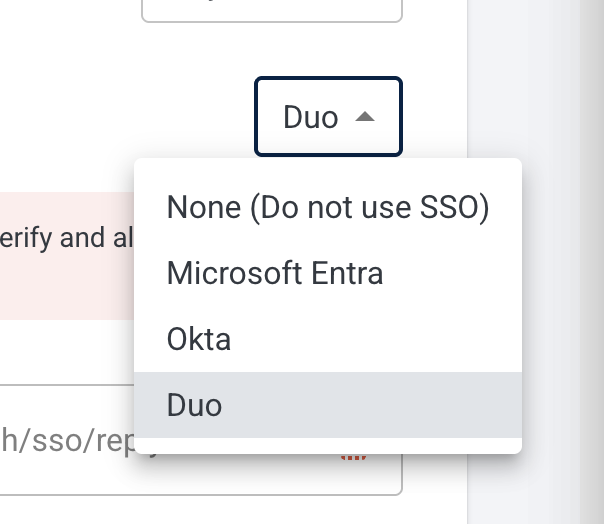
2. For the Identity Provider Dropdown, select “Duo”.
3. Paste the “Metadata URL” from DUO into the “IDP XML Metadata URL” field in RIVET
4. Enter your organization’s domain into the Authorized Domain field
5. Press save
6. Get the “Entity ID” from RIVET for Duo
.png?width=670&height=355&name=image%20(46).png)
7. Get the “Reply URL” from RIVET for Duo. In Duo, the matching field is “Assertion Consumer Service URL”
8. Paste both values into the corresponding fields on the RIVET application in Duo, then save
.png?width=670&height=336&name=image%20(47).png)
.png?width=670&height=376&name=image%20(48).png)
.png?width=670&height=363&name=image%20(49).png)